 RevGlance
Mobile app
RevGlance on iPhone and Android, with your figures, widgets, notifications and Ask.
RevGlance for iPhone and Android
The app is not on the App Store or Google Play yet, so you can't install it today. This page describes how it works.
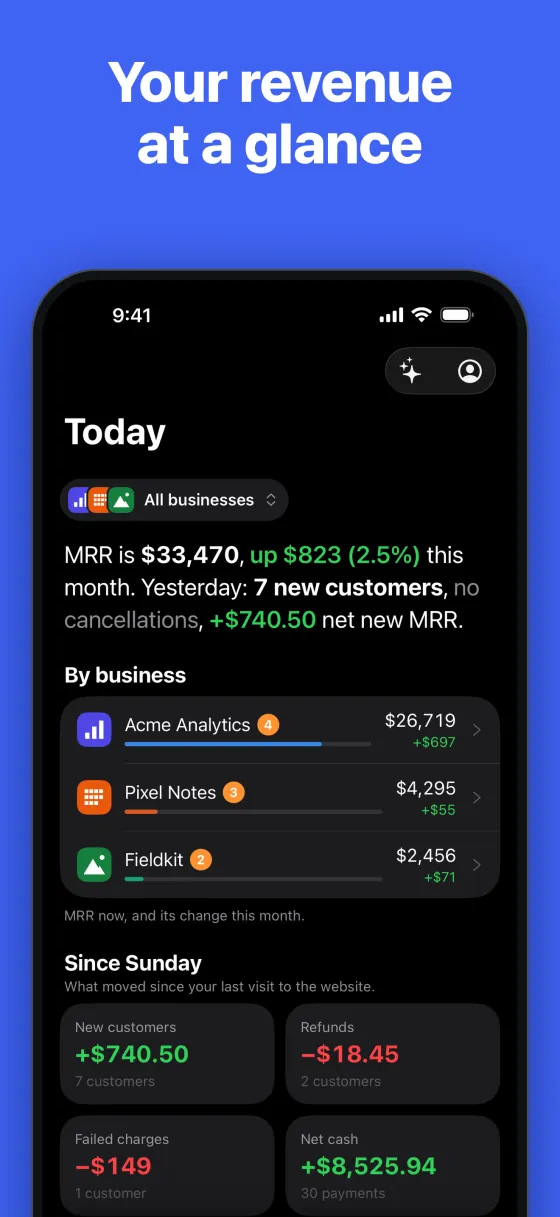
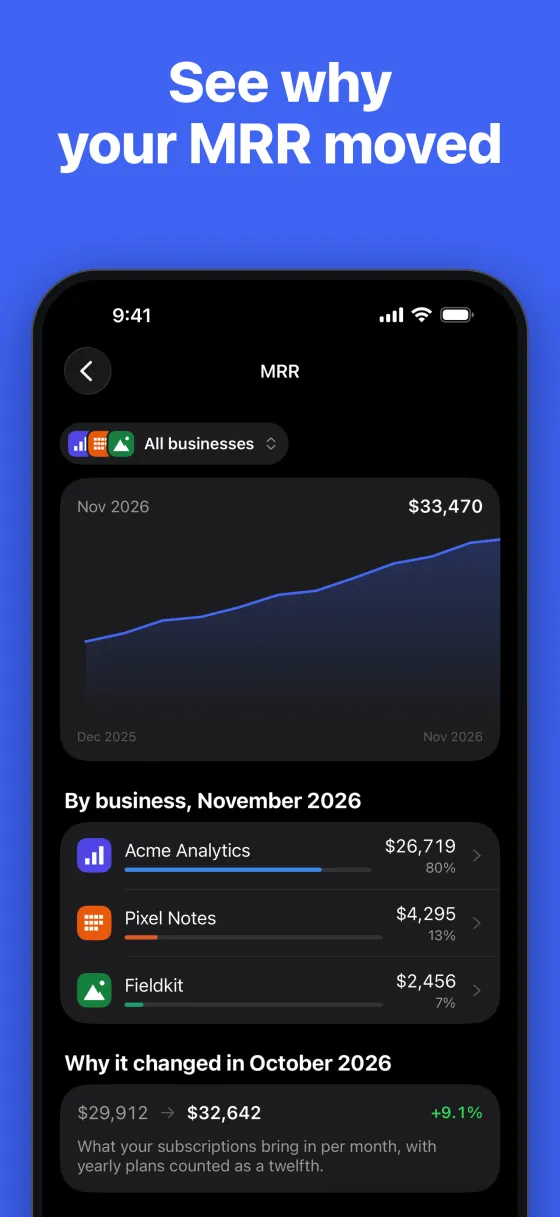
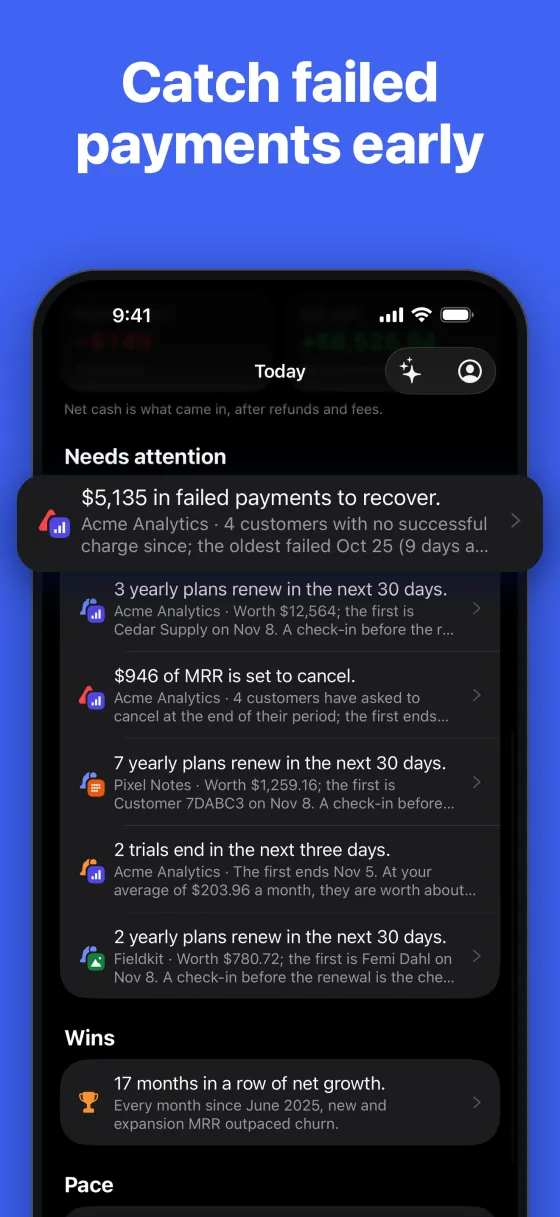
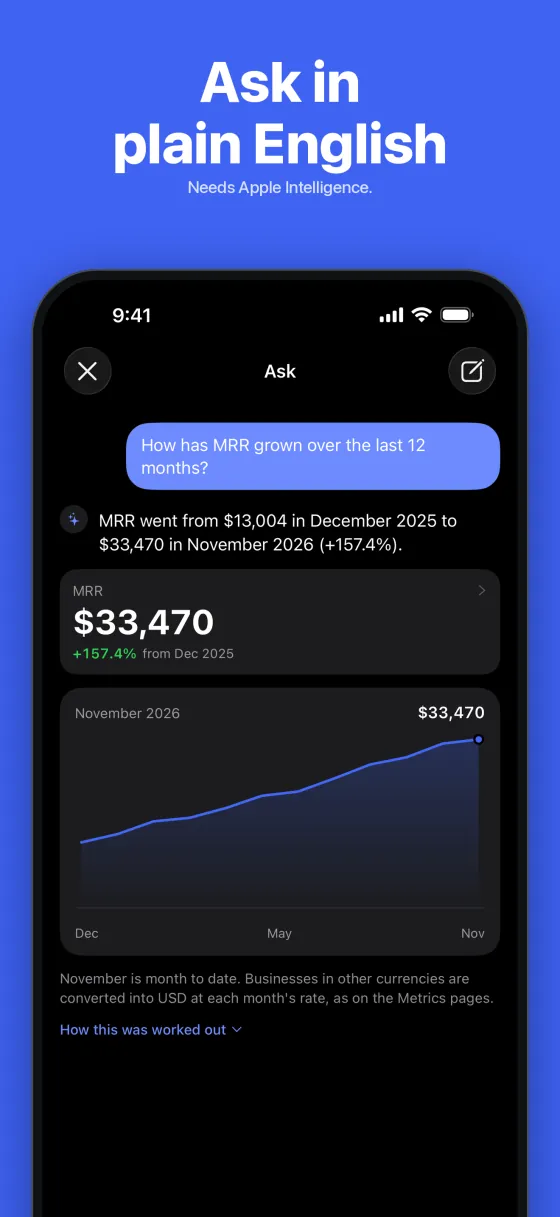
The app shows the same figures as the website, counted from your ledger. It only reads them: you connect sources, set alerts and change settings on revglance.com.
What's in the app
- Today: what moved since your last visit to the website, what needs attention, and how the month is going.
- Metrics: each metric with its history and why it changed. Pick a month, a quarter, a year or the last 30, 90 or 365 days. Show the math on revglance.com opens the rows behind a figure on the website.
- Customers: everyone, highest MRR first. Search by name, email or plan.
- Activity: payments and subscription changes from the last 30 days.
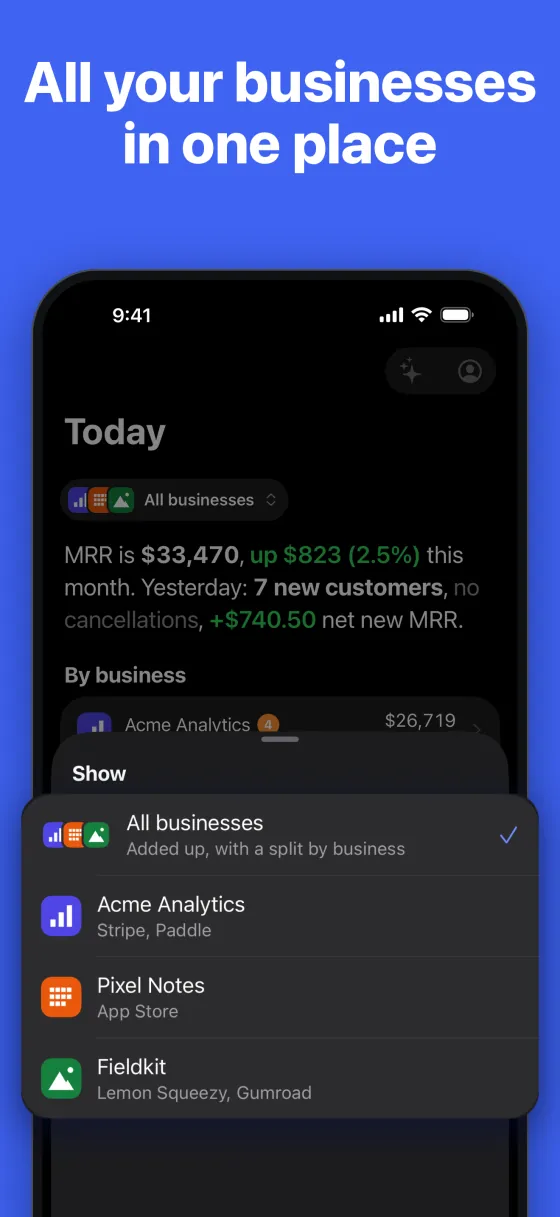
Under each tab's title you can switch between your businesses or pick All businesses. The person icon at the top right opens Account.
Signing in
Tap Sign in. revglance.com opens in your phone's secure browser sheet, and your password, passkey, Google, GitHub and two-factor work as they do on the website. The session is kept in the iOS Keychain or Android Keystore. It only opens the app, not the REST API or MCP.
Try the demo opens sample businesses without an account. The demo gets no notifications, and its widgets are labelled Sample data.
Sign out is in Account. It removes the figures from the phone and its widgets, and stops notifications to that phone. Delete account is there too: it opens the website, where you confirm.
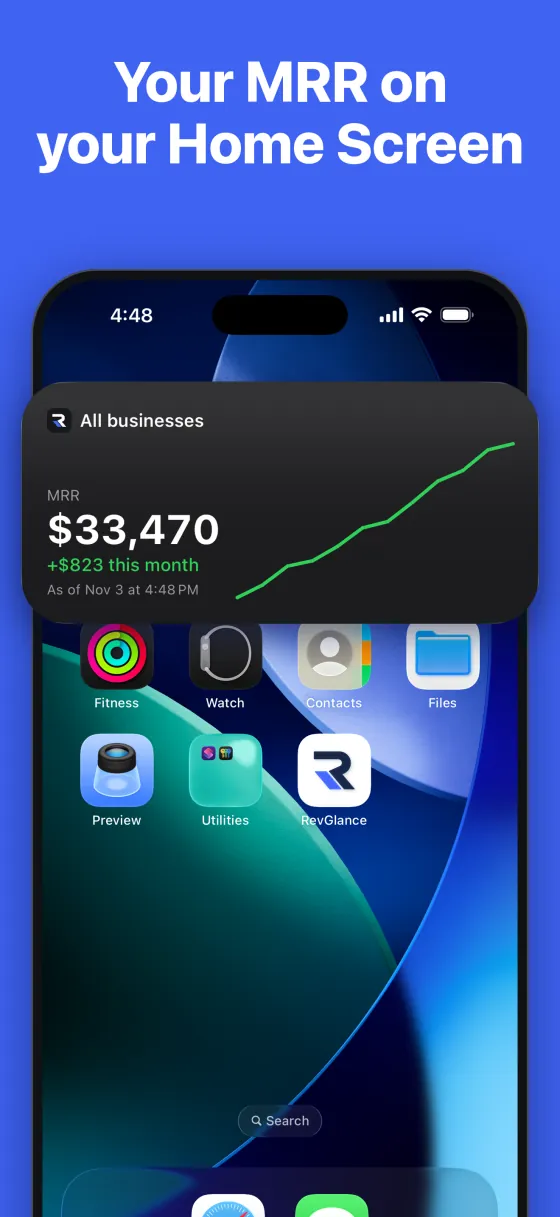
Home screen widgets
A widget shows what the app last gave it, with the time. It holds no login and never calls RevGlance itself. Tapping one opens Today.
iPhone
| Widget | Sizes | What you choose |
|---|---|---|
| MRR | Small, medium | The metric (MRR, net revenue, active customers, user churn), business |
| Needs attention | Small, medium | The business |
| All businesses | Medium, large | The metric |
The medium MRR widget adds a line of the last year. Needs attention counts failed payments and customers at risk. All businesses has one row per business, with a total where the metric adds up.
- Touch and hold an empty part of the Home Screen, tap Edit, and add a widget.
- Find RevGlance, then pick a widget and a size.
- To change what it shows, touch and hold the widget and edit it. Follow the app uses the business picked in the app.
Android
Android widgets have no settings of their own, so each metric is its own entry in the picker, and they all use the business picked in the app. These names are in English on every phone.
| Widget | Size | What it shows |
|---|---|---|
| MRR | 2×2 | The figure and how it moved |
| MRR chart, Net revenue, Active customers, User churn | 4×2 | The figure and a line of the last year |
| Needs attention | 2×2 | Failed payments and customers at risk |
| Businesses: MRR, Businesses: net revenue, Businesses: customers, Businesses: churn | 4×3 | One row per business |
- Touch and hold an empty part of the home screen and open the widgets. The words vary by phone maker.
- Find RevGlance, then drag a widget onto the home screen.
Lock screen widgets
These are on iPhone only. The MRR widget also comes in two lock screen sizes: one line above the clock, and a small rectangle below it. You choose the metric and business as on the Home Screen. iOS puts the date before the one-line version and cuts off what doesn't fit.
- Touch and hold the Lock Screen, tap Customize, and choose the Lock Screen.
- Tap the widget area, then pick RevGlance.
Anyone who can see your phone can read these, so consider hiding amounts.
Hiding amounts
Turn on Hide amounts on the widget in Account. Every widget then shows only the change in percent and, where it has a chart, the shape of the line. Amounts aren't stored for the widgets at all while this is on. Churn is a rate, so it stays. The setting belongs to the phone and lasts through signing out.
Notifications
Owners and admins can get their alerts and the Monday summary on their phone, on iPhone and Android alike. Viewers get neither, so they see no such setting.
On Today, tap Turn on under Get your alerts on this phone, then allow notifications. If you choose Not now, the offer doesn't come back, but Turn on notifications stays in Account.
Once they're on, Account › Notifications has a switch for each kind. All are on until you turn them off.
| Switch | What it sends |
|---|---|
| Failed payments | Your alerts on failed charges |
| Cancellations | Your alerts on cancellations and churn |
| Other alerts | Your alerts on any other metric |
| Monday summary | The first figures of the Monday email |
You set alerts on the website, and they fire as described there. A notification follows its email: an alert set to Slack only sends nothing to your phone, and with the Monday email off there is no Monday notification. Tapping an alert opens that metric for that business, and the Monday summary opens Activity. A business in privacy mode keeps its figures out of the notification.
Ask
Ask in the app runs on your phone's own model: Apple Intelligence on iPhone, Gemini Nano on Android. Its sparkles button is at the top right, and only appears on a phone that can run one. It is free and uses none of your monthly Ask questions. The app has no other model, so on any other phone, use Ask on the website.
The model only turns your question into a query. RevGlance checks every name and counts the figures from your ledger, so the model writes no number. How this was worked out under an answer shows each step.
Ask needs a connection and only works while the app is open. If the model can't read your language yet, try asking in English. In the demo, Ask offers example questions with answers written in advance and calls no model.
Apple Intelligence on iPhone
This needs iOS 26 and an iPhone that can run Apple Intelligence. If yours can but it's switched off, the button still appears and Ask tells you to turn it on.
- Tap Open Settings. Apple has no direct link to the page you need, so this opens RevGlance's own page in Settings.
- Go back to the main Settings list, open the Apple Intelligence page and turn it on.
- Return to RevGlance. Ask checks again by itself. The iPhone may need a while on Wi-Fi to finish setting up.
Gemini Nano on Android
The button appears on phones that have Gemini Nano or can get it. If it isn't on the phone yet, Ask offers a one-time Download, best done on Wi-Fi. Android doesn't report a model that's switched off, so a phone without one simply shows no button.
What the model and RevGlance see
The phone's model reads your question and the names of your metrics, plans, sources and countries, plus your businesses when you ask across them. It sees no customers and no amounts. Custom attributes are left out, so Let AI read customer data changes nothing here, and Ask in the app can't filter by them.
Your question and the model's reading of it then go to RevGlance to be counted, and are saved with your other Ask questions, where people with access to the business can see them. So avoid typing a customer's details into a question.
Refresh and offline
- Pull down on any tab to refresh. Today also reads again when you come back to the app after more than a minute.
- Saved figures: the app keeps what it last read for up to a day, and shows it at once while fresh figures load. Signing out deletes it.
- Offline: you see the saved figures, or Try again if there are none. Losing your connection doesn't sign you out.
- Widgets update whenever the app gets new figures. In the background, the system picks the moment, at most about once an hour and only while the phone is unlocked, so the time on a widget can be hours old. The demo doesn't refresh in the background.
Links that open the app
With the app installed, these revglance.com addresses open it. If you're signed out, you sign in first and land on the page.
| Address | Opens |
|---|---|
/home | Today |
/metrics, /stats | Metrics |
/mrr, /stats/{metric} | That metric |
/customers | Customers |
/customers/{id} | That customer |
/activity | Activity |
Everything else stays in the browser, including signing in, Settings and billing. On Android 11 and older, /customers/{id} and /stats/{metric} open the website. In the demo, links open Today.
Languages
The app is in English, Spanish, French, German, Brazilian Portuguese, Italian, Dutch, Japanese, Korean, Simplified Chinese, Polish, Turkish, Arabic and Hebrew. It has no language setting: it uses the first language on your phone's list that it has, or English. Numbers and dates follow your phone too. Notifications use the language of your RevGlance account.